
On-site analytics
Detections that mean something.
Four analytics, designed to run on a server at your site. Results draw over live video and save as evidence in printable reports.
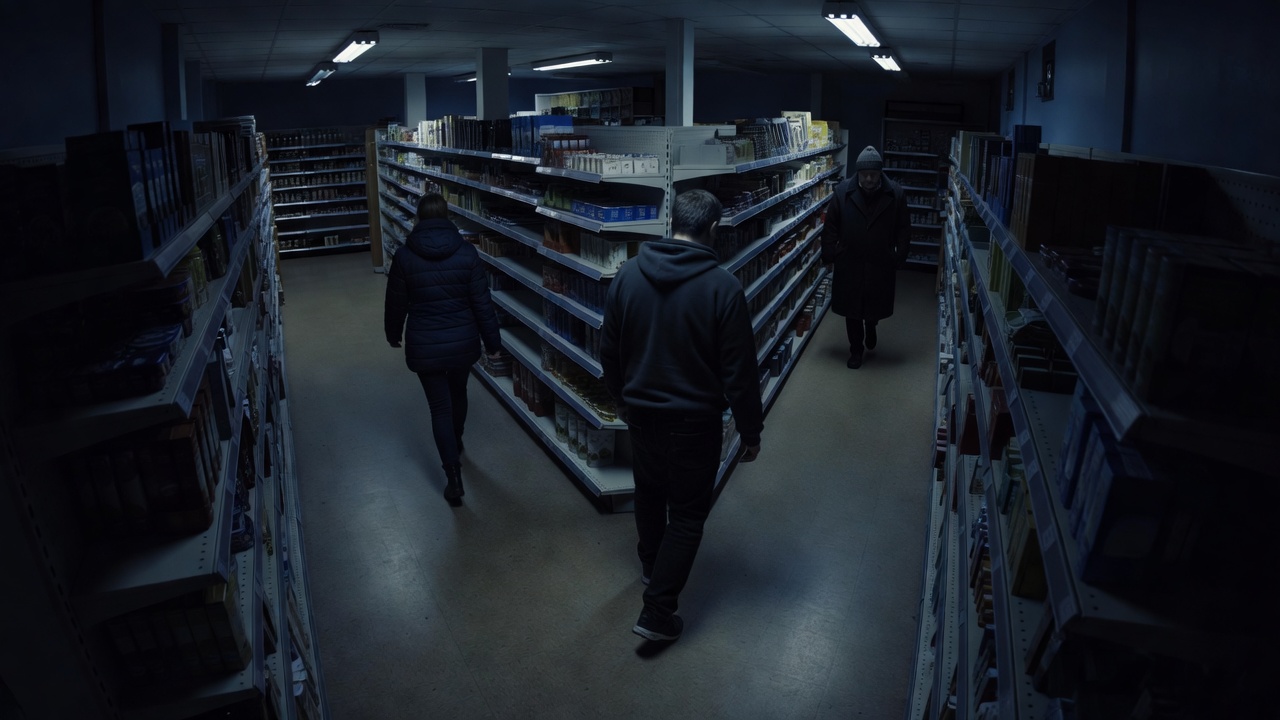
01 · People detection
Know when a person is in view.
Talos looks at video frames and draws a labelled box around each person it finds. This is the base the other analytics build on.
- Read the frameAnalytics read frames from the camera stream on your server.
- Draw the resultA box and a label appear over the live tile.
- Keep it tunableSet how sensitive detection is for each camera, to suit its scene.
Good to know
- Heavier analytics on more cameras need a bigger server. Sizing depends on camera count, resolution and which analytics you enable.
02 · Face recognition
Match against faces you have enrolled.
Enrol the people you want recognised. When a face in view matches an enrolled one, Talos labels it and can save the evidence.
- EnrolAdd the faces you want recognised.
- MatchA detected face is compared with the enrolled list.
- RecordA match is saved with an evidence image for review.
Good to know
- Only faces you have enrolled are matched.
- Enrol only people who have agreed, tell people on site that face recognition is in use, and follow the personal data rules that apply to you.
- Enrolled faces are stored on your server, not by us. The privacy policy explains who is responsible for that data.

03 · PPE checks
See whether protective equipment is in the frame.
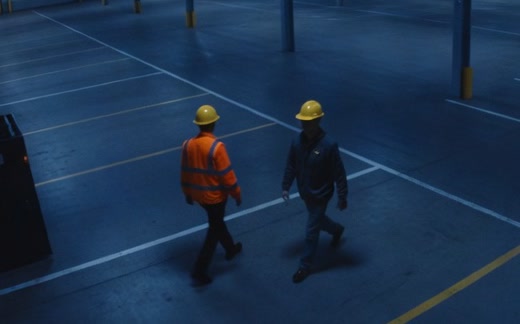
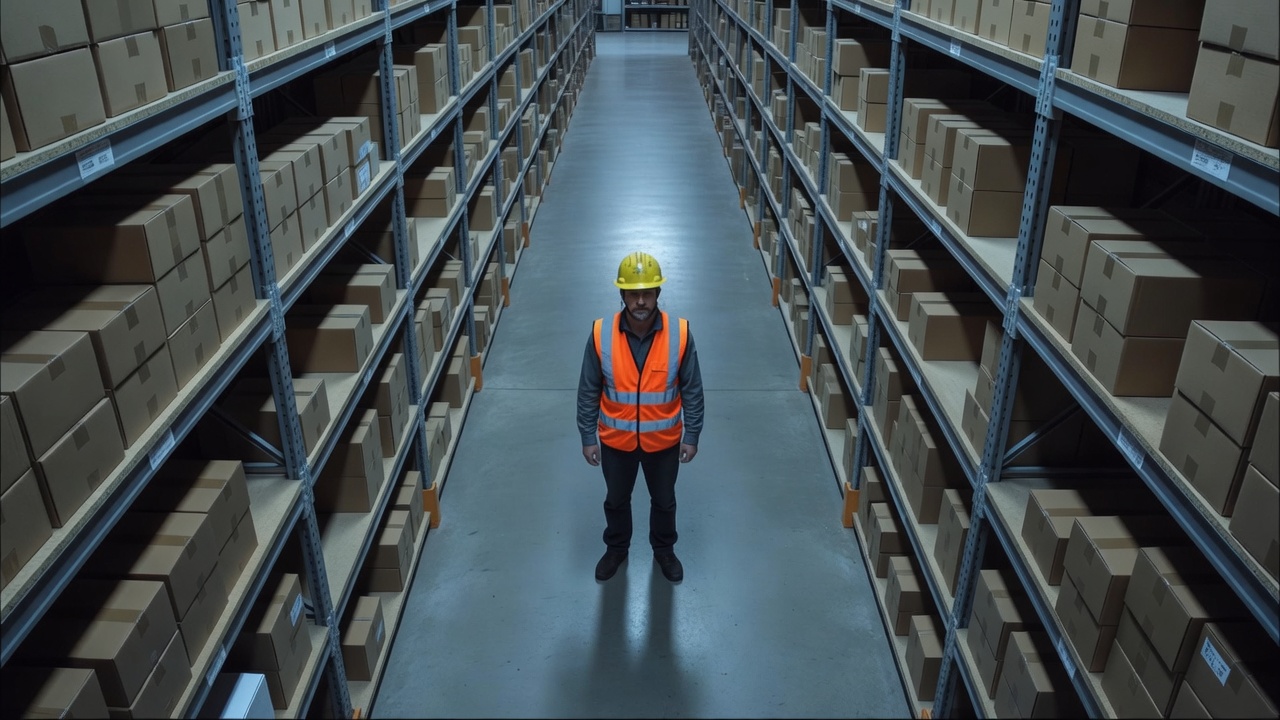
For each person Talos checks for items such as a hard hat and a high-visibility vest and shows the result in words, never colour alone.
- Find the personA person is detected in the frame.
- Check the equipmentEach item is checked and reported as present or missing.
- Save the evidenceThe result and a frame are saved for the report.
Good to know
- A missing item in the frame is not proof of a violation. It is a prompt for a person to look.
04 · People counting
Count people as they cross a line.
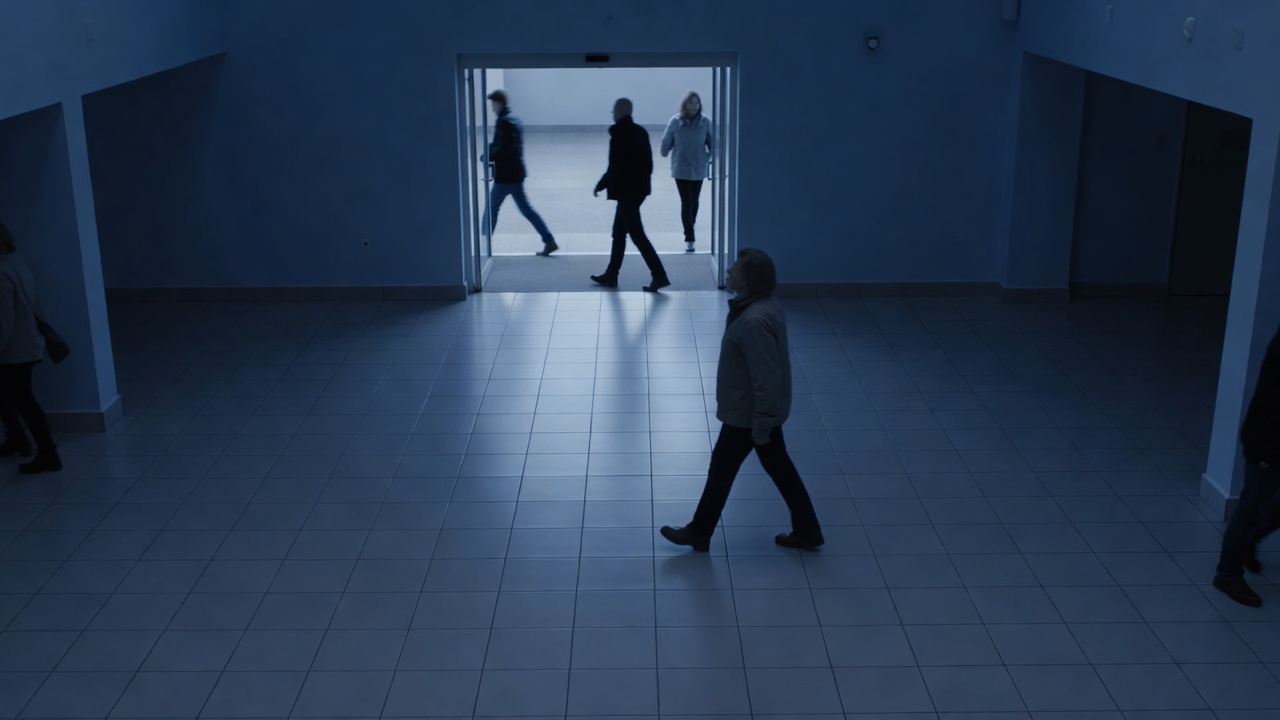
Place a virtual line across an entrance. Talos follows people across frames and counts them as they cross it.
- Draw the linePlace a virtual line across the doorway or aisle.
- TrackPeople are followed across frames so one person is counted once.
- Read the countThe line keeps a running count of people who crossed.
Good to know
- Crowding and occlusion make counting harder. Place the camera so people cross the line one or a few at a time.
05 · Reports and evidence
From a detection to a page you can print.
Face and PPE results are kept with the evidence image that produced them, and can be reviewed and printed as a report.
- ReviewOpen the results for a period and look at each evidence image.
- CheckA person confirms what the system found.
- PrintProduce a printable report with the images included.
Good to know
- Evidence images are stored on the server at your site.
- Check the report flow on the exact build you plan to deploy.
Evidence report
Before you rely on it
Evaluate it on your own footage.
Accuracy depends on camera placement, lighting, distance and the scene, so we do not quote a single figure. The fair test is your own cameras.
Pick the cameras that matter
Start with the two or three views you care about most.
Run it on real footage
Use your own clips or a live feed, in the lighting you actually have.
Check what it finds and misses
Compare the detections with what really happened.
Tune, then decide
Adjust sensitivity for each camera and decide where it helps.
Next step
Test it on your own footage.
Share a clip from the camera you care about and we will show you what the analytics do with it.
Request a demo