
The console
Watch, investigate and control from one screen.
Four jobs an operator does every shift, in one place: watch live, find a moment, add a device, move a camera.
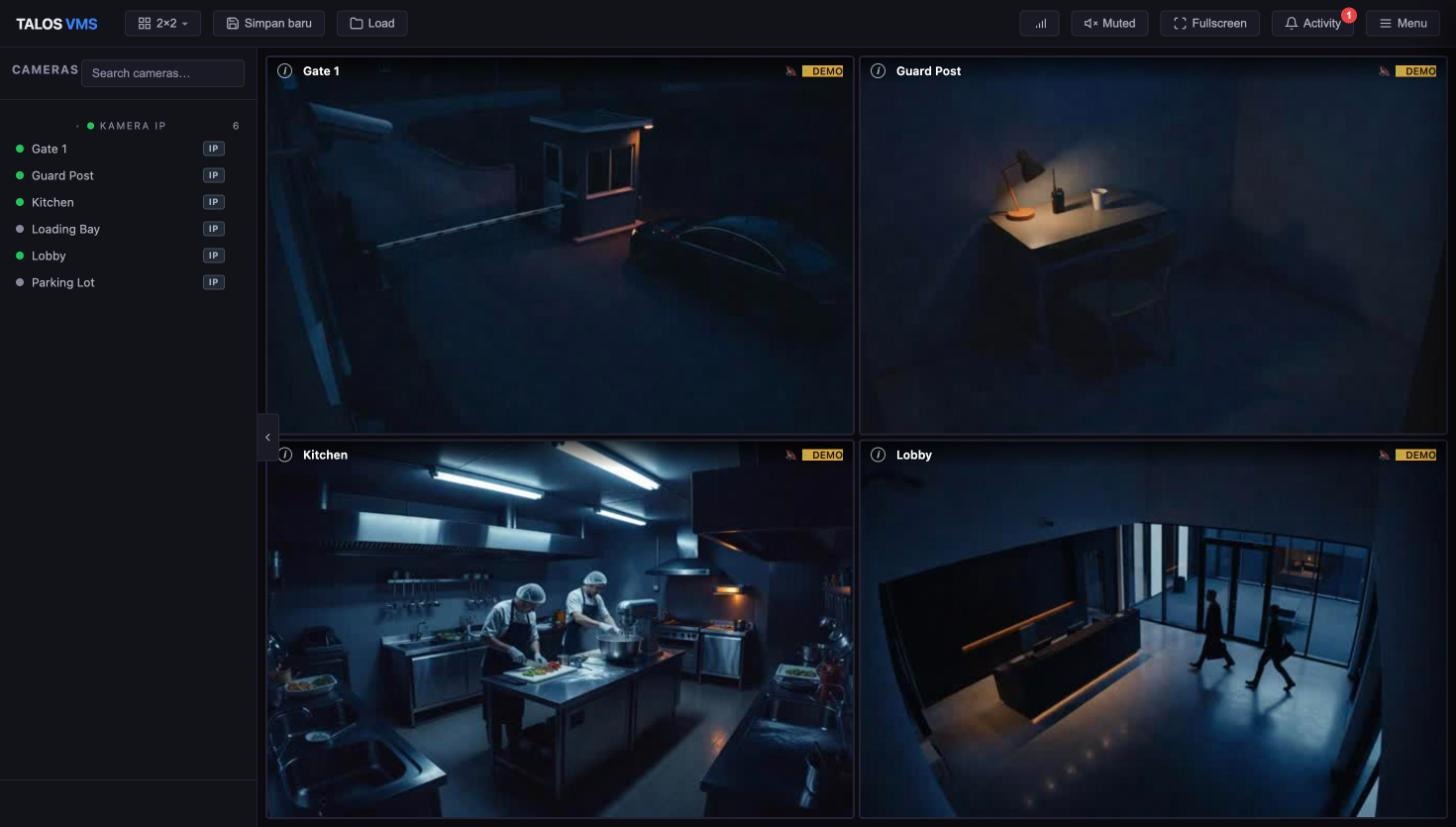
01 · Live view
Many cameras. One grid.
Drop cameras into a grid and watch them live. Pick a layout, save it, and load it again next shift.
- Pick camerasSearch the camera list, then click or drag a camera into a tile. Live starts automatically.
- Choose a layoutSwitch grids such as 2×2, save the arrangement under a name and load it later.
- Stay in the pictureGo fullscreen, mute audio, and keep an eye on the activity list for events.
Good to know
- Live video starts as soon as you open a camera.
- Picture quality and delay depend on the camera and your network.
- Cameras
- Lobbyonline
- Loading bayonline
- Shop aisleonline
- Gateonline
- Entranceoffline
- Parkingoffline
- Drag a camera in
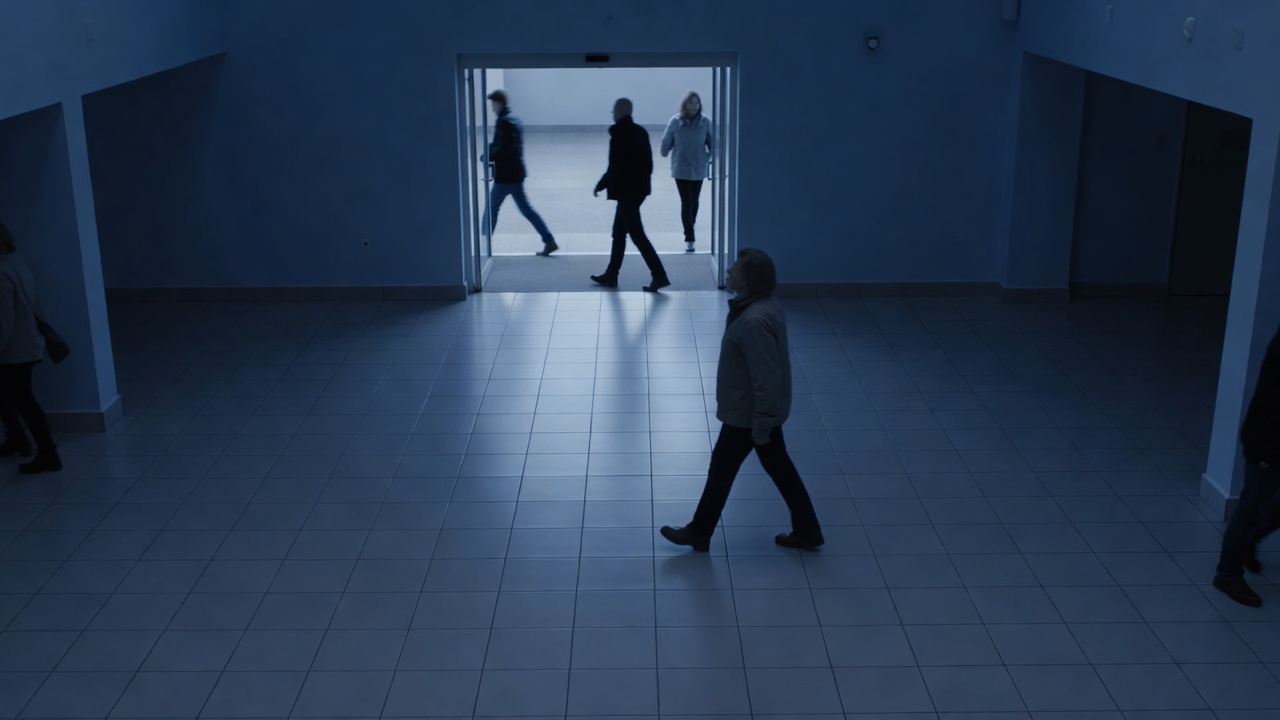 Lobby
Lobby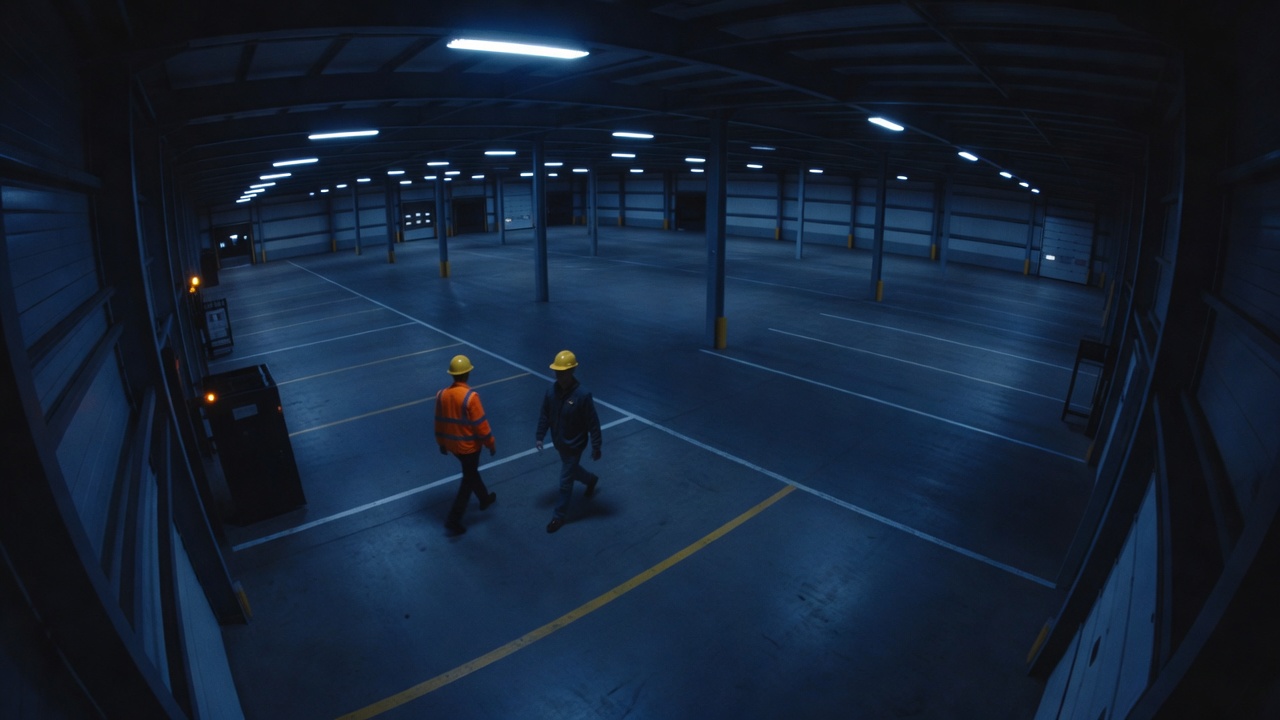 Loading bay
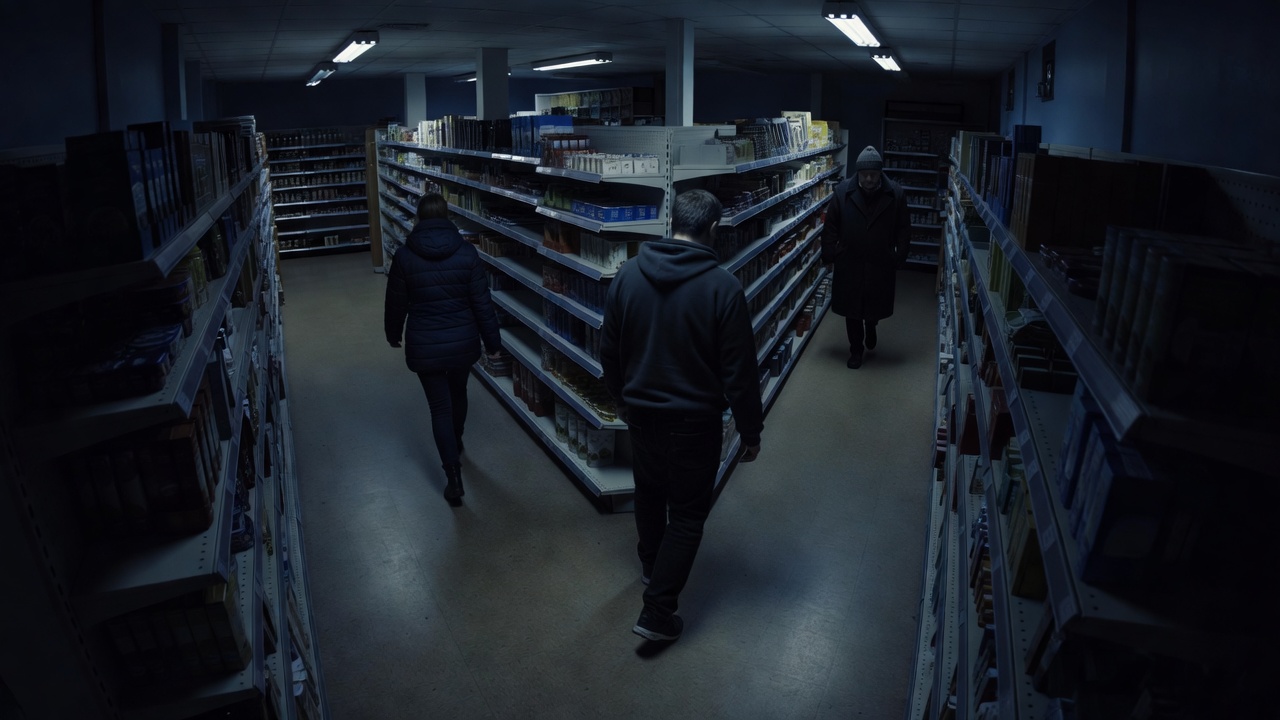 Shop aisle
 Gate
Gate02 · Playback and evidence
Find the moment. Keep the clip.
Scrub a timeline to the time that matters, review what was recorded, and download the clip.
- Choose the sourceReview recordings held on your NVR or DVR, or on a camera's SD card.
- Scrub the timelineMove to the time, watch it back and mark the range you need.
- Download the clipSave only the part you need as evidence.
Good to know
- Playback uses recordings your devices already store. Talos does not replace the recorder.
03 · Add devices
Three ways to bring cameras in.
Add a single camera by address, let Talos find cameras on the network, or scan a recorder and import its channels in one go.
- Add by addressEnter the IP of a camera and its login. It joins the camera list.
- Discover on the networkScan the network for cameras and pick the ones you want.
- Import recorder channelsScan an NVR or DVR and import the channels you need as cameras.
Good to know
- How much Talos can control depends on the camera model and firmware.
- A basic camera shows live video only.
04 · Camera control
Only the controls the camera can use.
Move a camera and tune its detection from the console. Talos asks the device what it can do first, so buttons appear only where they work.
- Probe firstTalos asks each device what it can do.
- Show what worksPan, tilt and zoom appear only on cameras that can move.
- Read and set detectionView and change camera-side settings such as motion, line crossing and intrusion where the firmware allows.
Good to know
- Roles and permissions decide who can use camera control.
- A camera that cannot be queried is shown as unknown, not as unsupported.
At a glance
What the console does, and what it depends on.
| Capability | What it does | Depends on |
|---|---|---|
| Live grid | Watch many cameras at once, with saved layouts | Camera codec, network |
| Camera list | Search, group and drag cameras into the grid | Devices added |
| Playback | Timeline review from recorder or camera SD card | What the device stored |
| Clip download | Save the range you chose | Device playback support |
| Device onboarding | Add by IP, network scan, NVR/DVR scan and import | Camera model and firmware |
| PTZ | Pan, tilt and zoom, shown only where supported | Device capability probe |
| Camera detection settings | Read and write motion, line crossing, intrusion, face on the camera | Camera model and firmware |
| On-site analytics overlay | Detection boxes drawn over live video | Analytics build and server |
| Reports | Face and PPE results with saved evidence images | Analytics enabled |
| Roles and permissions | Control who can see and do what | Your configuration |
Next step
See it on your own cameras.
Tell us what you have on site and we will show you the console with your setup in mind.
Request a demo